Generate a MiniMax H3 Text-to-Video Clip with Nosana and ComfyUI

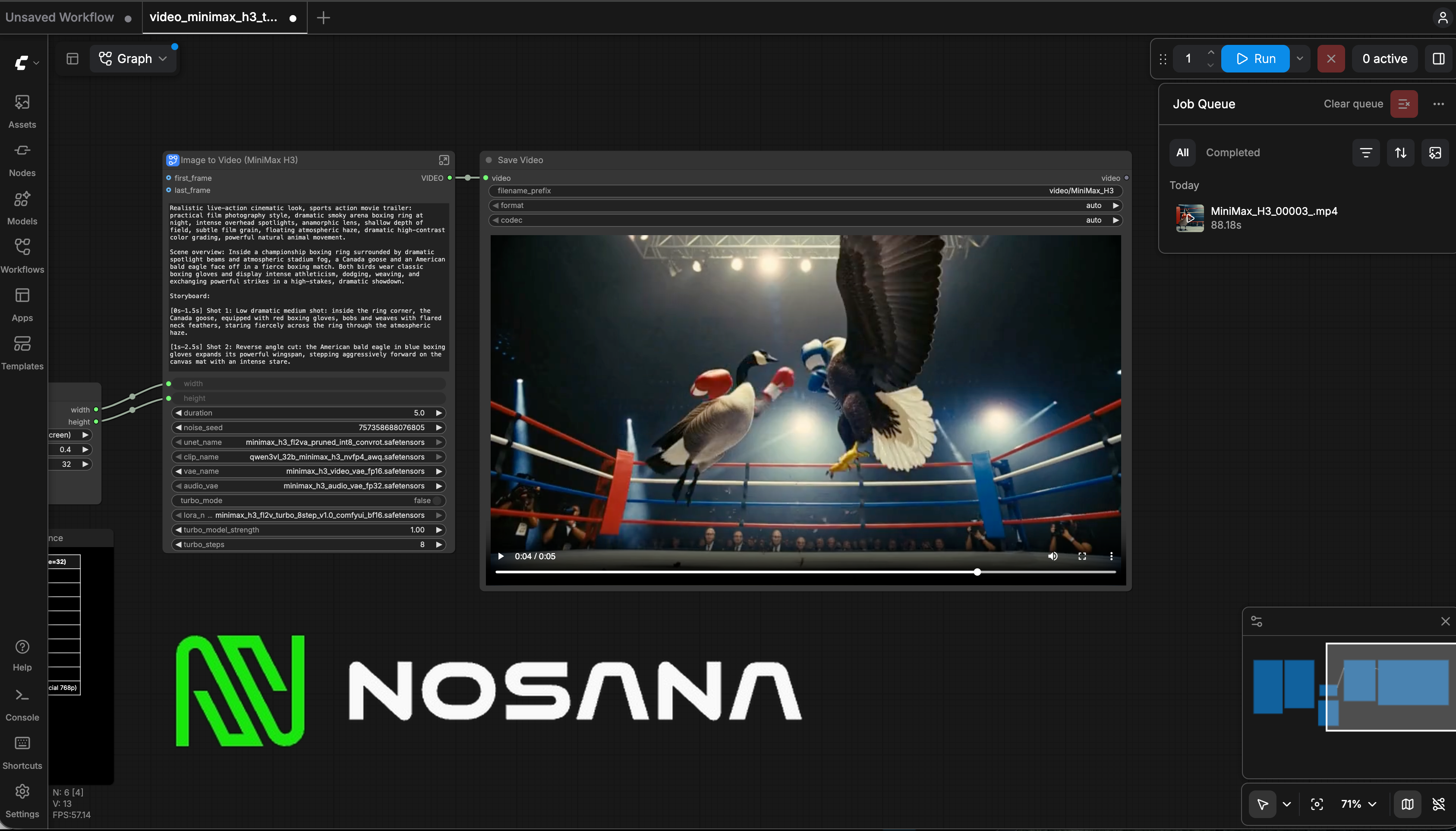
MiniMax H3 can generate a video and its stereo soundtrack together from one prompt. In this tutorial, you will deploy a ready-made H3 environment on a Nosana GPU, open its hosted ComfyUI endpoint, load the official MiniMax H3: Text to Video workflow, and create a five-second cinematic boxing match between a Canada goose and an American bald eagle.
The finished workflow produces a single playable MP4 containing both the picture and synchronized crowd, movement, impact, and music audio.
What You Will Build
By the end of this tutorial, you will know how to:
- Launch a GPU-backed MiniMax H3 deployment from the Nosana dashboard.
- Monitor the initial model download and open the deployment's ComfyUI endpoint.
- Load ComfyUI's native H3 text-to-video template.
- Configure a five-second, 16:9 generation.
- Write a timed storyboard with camera, action, sound effects, ambience, and music in one prompt.
- Run the graph, preview the result, and stop the deployment when you are finished.
Prerequisites
Before you begin, prepare:
- A Nosana Deploy account.
- Enough Nosana credit for the GPU and setup time. GPU prices and availability change, so treat the values in the screenshots as examples and check the live dashboard before deploying.
- A modern browser with enough free memory for the ComfyUI graph and video preview.
- Permission to use the generated content under the current MiniMax H3 license and applicable laws.
You do not need to install ComfyUI locally or manually download H3 weights when using the prepared Nosana template shown below.
Step 1: Create the MiniMax H3 Deployment
- Sign in to Nosana Deploy.
- Open Deployments and start a new deployment.
- Select MiniMax H3 Video - Image to Video (32 GB).
Despite the card's name, its description confirms that the environment supports both keyframe and text-to-video workflows. We will select the dedicated text-to-video workflow after ComfyUI opens.
- Give the deployment a recognizable name.
- Select an available GPU. The captured run uses an NVIDIA 5090 with 32 GB VRAM. The same screen may offer other compatible cards, but availability and hourly pricing are live marketplace values.
- Keep one replica and the default settings unless your project requires a different timeout or strategy.
- Review the summary, then click Create Deployment.
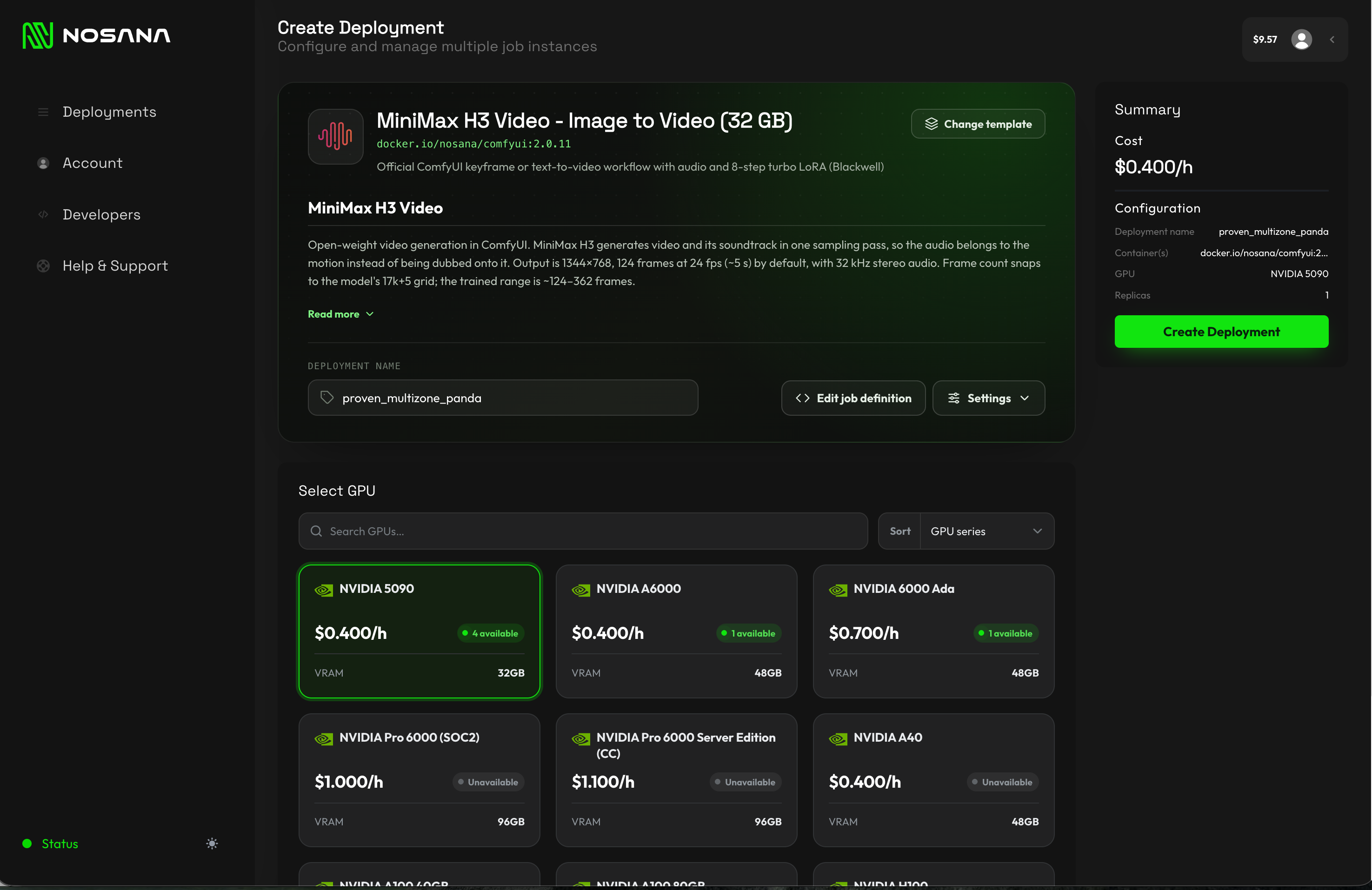
The Nosana MiniMax H3 deployment template follows the same sequence: select a GPU, configure the deployment, create it, monitor startup, and open the endpoint.
Step 2: Wait for the Model Files to Load
Nosana redirects you to the deployment overview and starts the job automatically. Open the Logs tab.The first boot pulls the ComfyUI container and downloads the H3 resources. This template uses docker.io/nosana/comfyui:2.0.11; the captured download is approximately 19.53 GB. Wait for the resource bar to complete and for the job to remain in a healthy Running state. Do not open ComfyUI while the model download is still in progress, because the workflow can appear with empty model selectors.
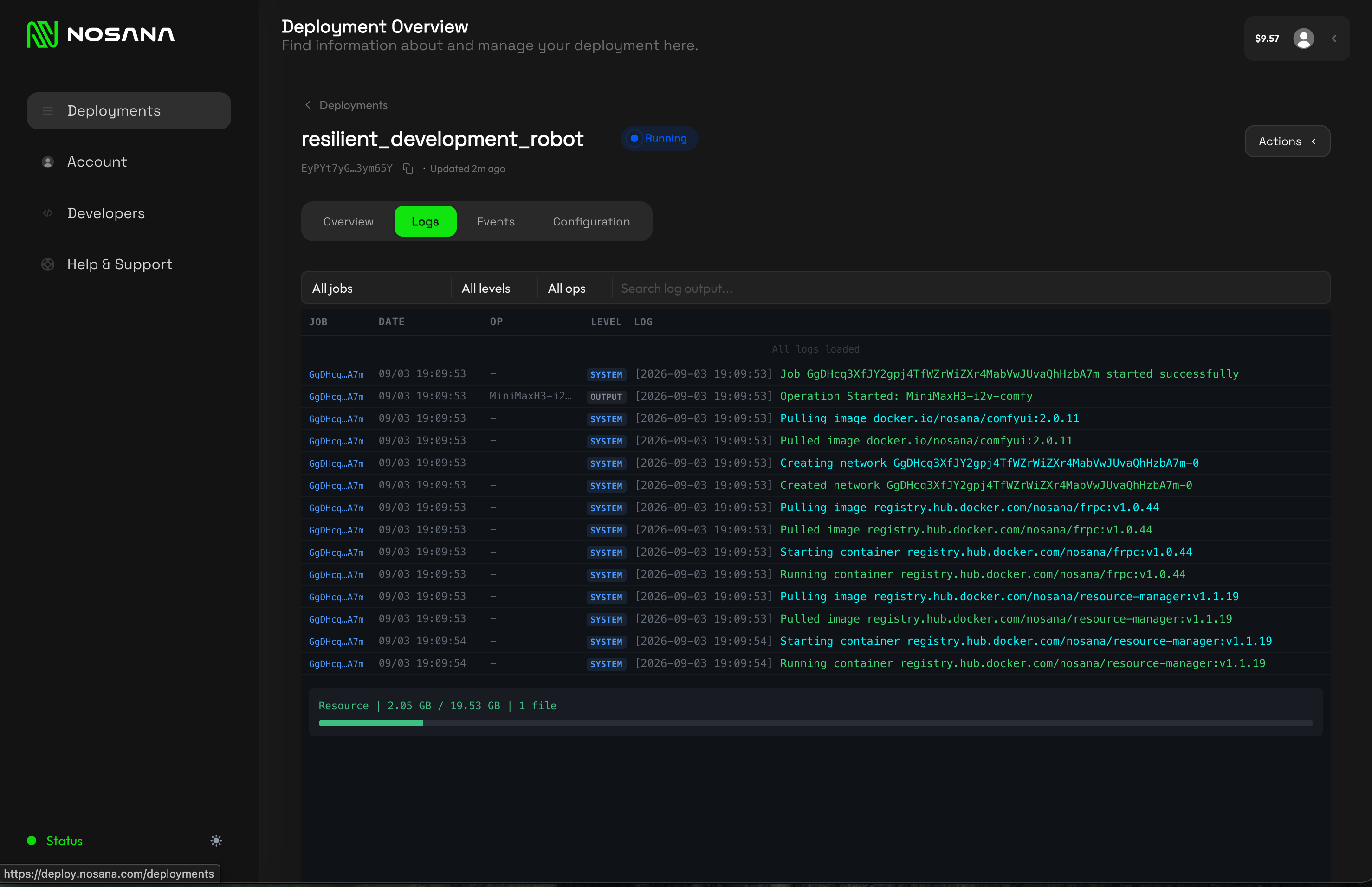
If startup stalls, inspect the latest log line before restarting. Repeated restarts can repeat setup work and consume paid GPU time.
Step 3: Open the ComfyUI Endpoint
Return to the Overview tab after the deployment is running.
Confirm that:
- The deployment status is Running.
- The selected GPU is attached.
- The replica count is
1 / 1. - The MiniMaxH3-i2v-comfy endpoint on port
8188is available.
Click the endpoint URL to open the hosted ComfyUI interface.
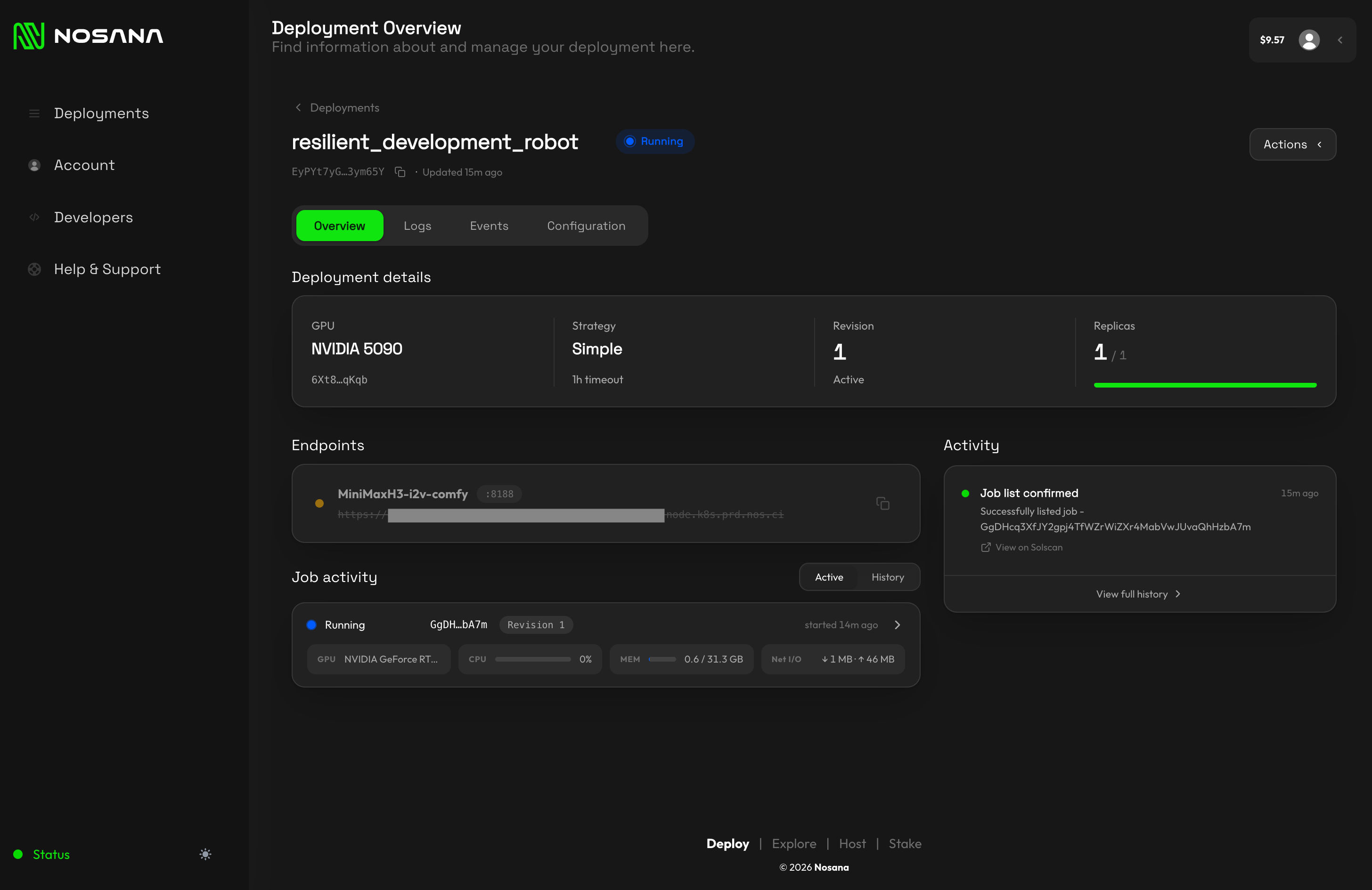
The endpoint is public infrastructure for the duration of the deployment. Do not paste secrets into workflow text fields, and stop the deployment when you are done.
Step 4: Load the MiniMax H3 Text-to-Video Workflow
In ComfyUI, click Templates in the left sidebar. Under Generation Type, choose Video, then select MiniMax H3: Text to Video.
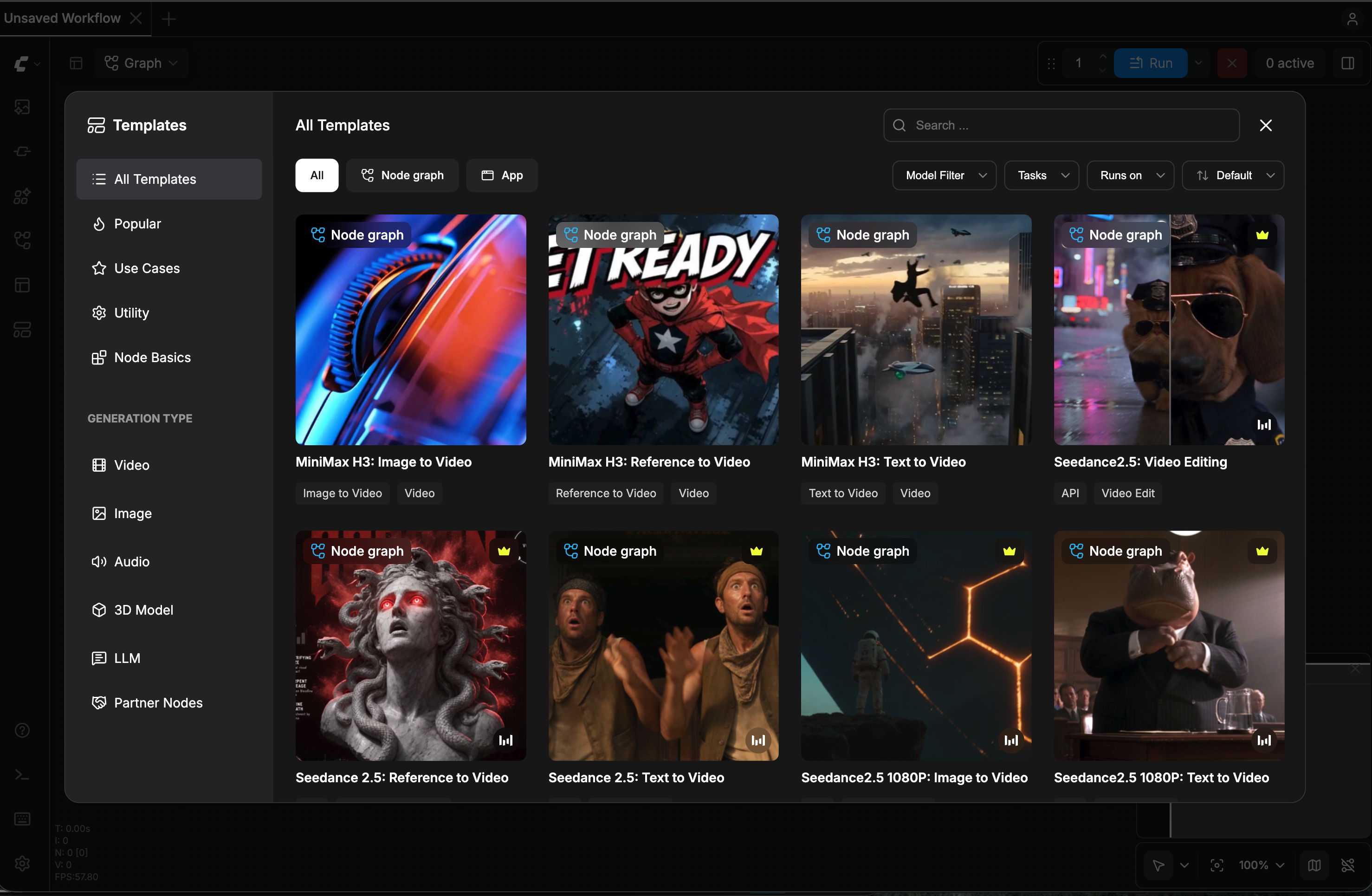
ComfyUI templates are ready-made graphs with the correct nodes and model connections. Loading a template checks for its required model files before you run it.
For reference, the official H3 T2V workflow uses:
minimax_h3_fl2va_pruned_int8_convrot.safetensorsas the diffusion model.qwen3vl_32b_minimax_h3_nvfp4_awq.safetensorsas the text encoder.minimax_h3_video_vae_fp16.safetensorsas the video VAE.minimax_h3_audio_vae_fp32.safetensorsas the audio VAE.minimax_h3_fl2v_turbo_8step_v1.0_comfyui_bf16.safetensorsfor optional turbo generation.
The Nosana template provisions these components, so you can work directly in the graph instead of downloading each file manually.
Step 5: Configure the Five-Second Video
Find the Resolution Selector and Image to Video (MiniMax H3) nodes. The same FL2VA node performs text-to-video when both first_frame and last_frame are left disconnected.
Use the settings shown in the captured workflow:
| Setting | Value |
|---|---|
| First frame | Leave disconnected |
| Last frame | Leave disconnected |
| Aspect ratio | 16:9 (Widescreen) |
| Megapixels | 0.4 |
| Multiple | 32 |
| Duration | 5.0 seconds |
| Turbo mode | false for the captured result |
The 0.4 megapixel setting is a fast preview size. ComfyUI's official H3 guide recommends keeping the resolution multiple at 32. For a full native 16:9 canvas, it recommends 0.98 megapixels or 1344 x 768, but that larger render uses more time and memory.
H3 generates on a 17k + 5 frame grid at 24 fps. A nominal five-second request therefore produces 124 frames, or about 5.17 seconds of encoded video.
Step 6: Paste the Prompt
Paste the following prompt into the large text field on the Image to Video (MiniMax H3) node exactly as written:
Realistic live-action cinematic look, sports action movie trailer: practical film photography style, dramatic smoky arena boxing ring at night, intense overhead spotlights, anamorphic lens, shallow depth of field, subtle film grain, floating atmospheric haze, dramatic high-contrast color grading, powerful natural animal movement.

Scene overview: Inside a championship boxing ring surrounded by dramatic spotlight beams and atmospheric stadium fog, a Canada goose and an American bald eagle face off in a fierce boxing match. Both birds wear classic boxing gloves and display intense athleticism, dodging, weaving, and exchanging powerful strikes in a high-stakes, dramatic showdown.

Storyboard:

[0s–1.5s] Shot 1: Low dramatic medium shot: inside the ring corner, the Canada goose, equipped with red boxing gloves, bobs and weaves with flared neck feathers, staring fiercely across the ring through the atmospheric haze.

[1s–2.5s] Shot 2: Reverse angle cut: the American bald eagle in blue boxing gloves expands its powerful wingspan, stepping aggressively forward on the canvas mat with an intense stare.

[2.5s–4s] Shot 3: Dynamic close-up action sequence: rapid exchange of punches—the eagle throws a swift hook, the goose agilely ducks and counters with a sharp jab, loose feathers caught in the harsh overhead light beam.

[4s–5s] Shot 4: Freeze frame impact: high-energy dramatic low-angle shot as both airborne fighters clash mid-ring, gloves connecting in a climactic silhouette against the blinding overhead arena lights.

Camera: Distinct angle for each shot, rapid clean cuts with no transitions, dynamic handheld camera movement, slight frame jitter on heavy glove impacts.

Audio: Roaring arena crowd, canvas shoe squeaks, sharp wing flutters, heavy leather glove impacts, deep cinematic bass score building underneath, punctuated with explosive sound accents on every punch climaxing at 4s.

Rules: No text, subtitles, logos, or watermarks of any kind. Photorealistic live-action texture, no cartoon, 3D render, or animated look.
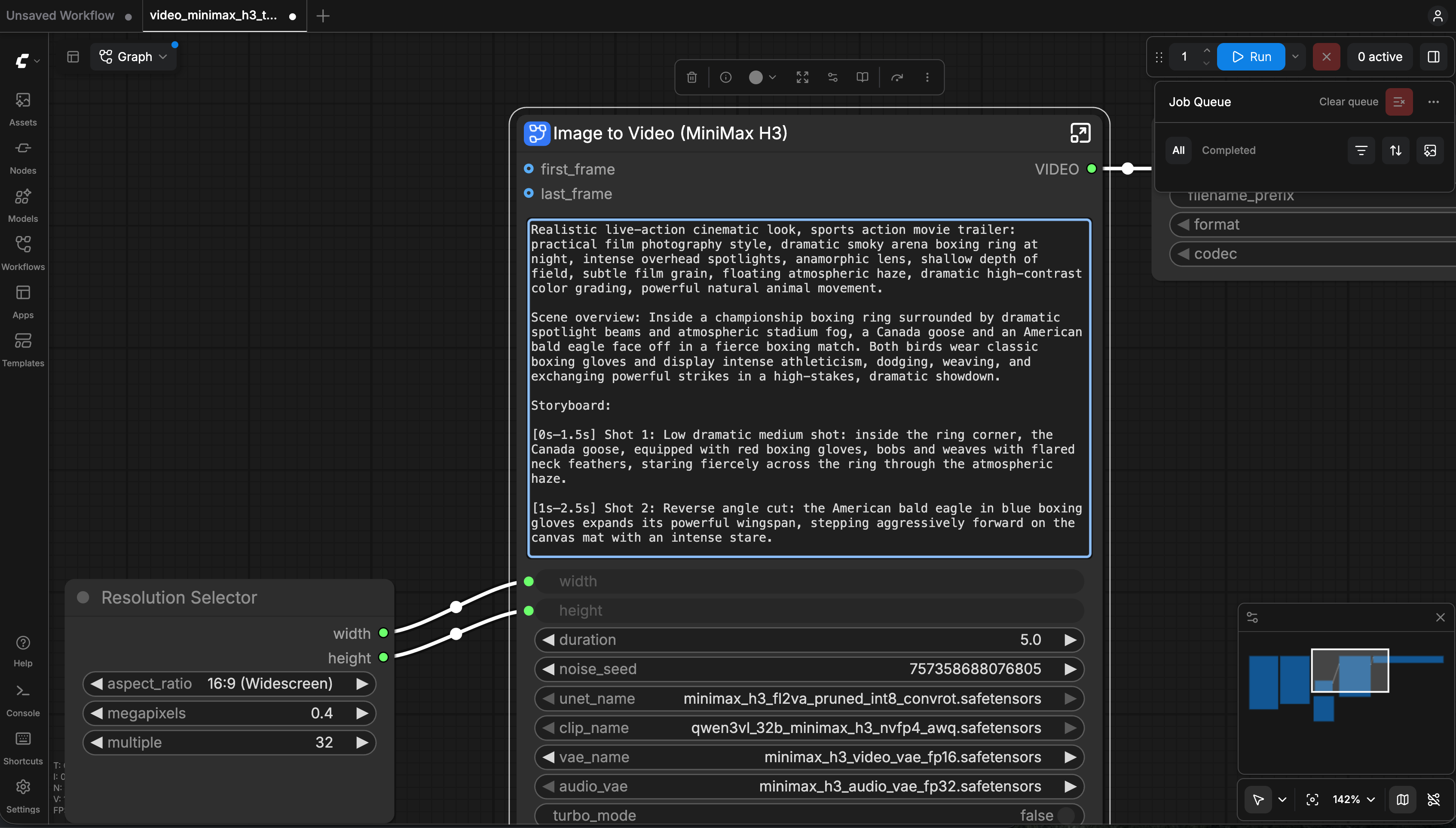
This prompt starts with a global visual direction, defines the scene, maps actions to time ranges, specifies camera behavior, and finishes with audio and output constraints. That structure follows MiniMax and ComfyUI's recommendation to describe the full scene first and then break it into timed shots with camera and sound instructions.
The shot ranges intentionally overlap slightly so the second fighter can enter before the first setup fully ends. If your result feels rushed or merges actions, simplify the choreography or generate separate clips; a five-second model output cannot guarantee every requested cut or exact action beat.
Step 7: Run and Review the Result
- Click Run in the top-right corner.
- Watch the job queue while ComfyUI samples and decodes the audio-video result.
- When the job completes, use the Save Video node's player to inspect the clip.
- Turn on sound and review both picture and audio. Check that the file is not frozen or silent and that the core prompt intent is present.
- If you want another variation, change the noise seed and run again. A repeated seed can produce a similar result, but generative output is not guaranteed to be identical.
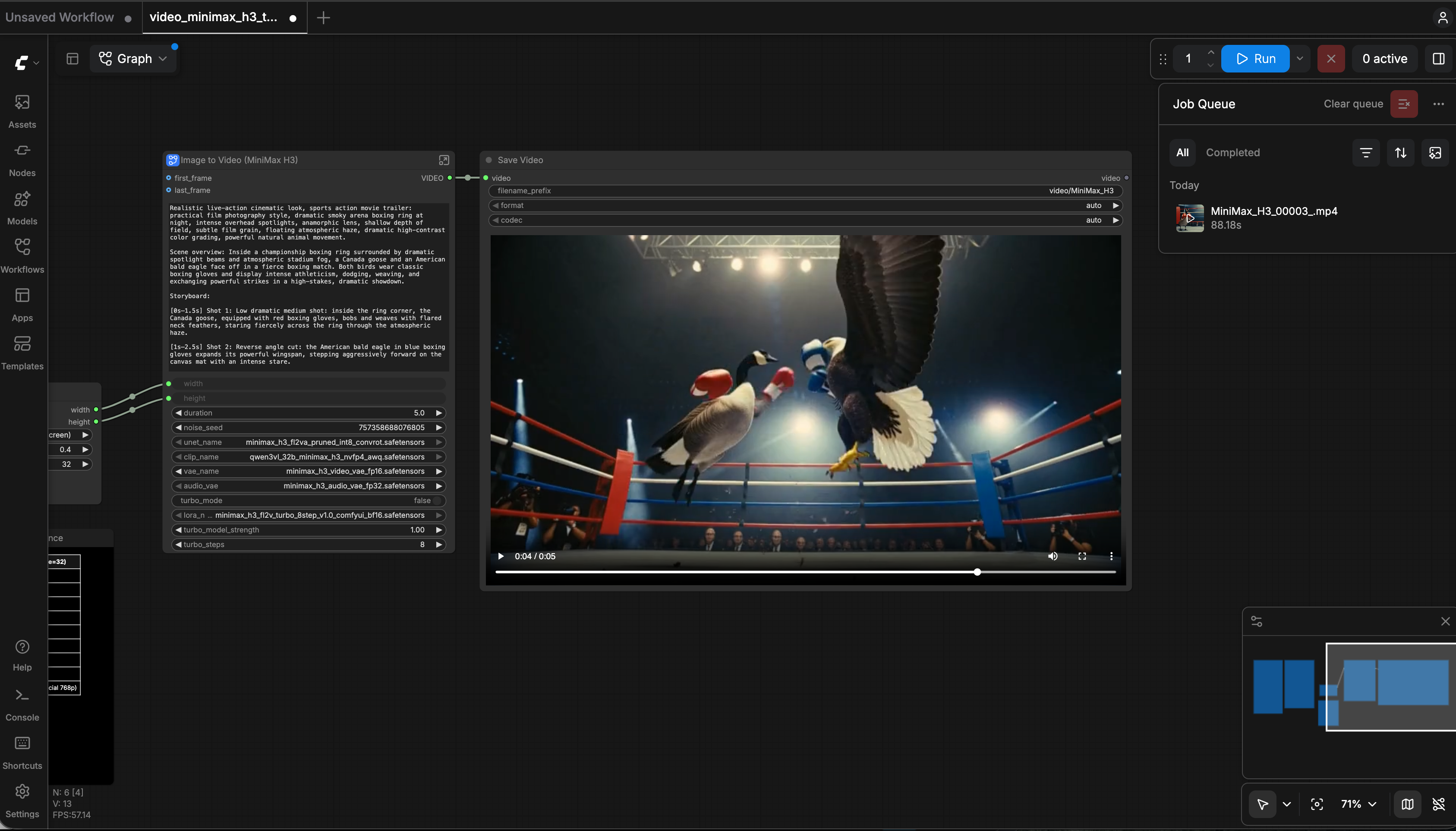
For faster iteration, enable turbo_mode and use the included 8-step LoRA. ComfyUI documents this as substantially faster but notes a possible reduction in motion and audio quality. Leave turbo mode off when matching the example result shown here.
Final Result
Click the player to watch the generated video with sound:
The included result is an H.264 MP4 at 864 x 480, 24 fps, with AAC audio and a duration of approximately 5.17 seconds.
Clean Up
Return to Nosana Deploy when you finish, open the deployment's Actions menu, and stop or delete the deployment according to your retention needs. Confirm that the status is no longer Running so hourly GPU billing does not continue.
Troubleshooting
The endpoint is visible but ComfyUI is not ready
Return to Logs and wait for the container and model-resource downloads to finish. Refresh the endpoint only after the deployment is healthy.
The H3 model dropdown is empty
The model files may still be downloading. Check the Nosana deployment resource progress, then refresh ComfyUI. ComfyUI's template system requires the model filenames to be present in their expected model folders.
The render runs out of memory
Keep the preview at 0.4 megapixels, close other GPU jobs, or choose a compatible GPU with more VRAM. Do not raise resolution and duration simultaneously during your first test.
The output does not follow all four shots
Short text-to-video generations may compress or blend dense choreography. Reduce the number of cuts, give each action more time, or render individual shots and edit them together afterward.
The video has weak or missing sound details
Keep concrete sound events near the corresponding visual action and reserve the final audio section for the overall soundscape and score. Re-run with a new seed if the first variation under-emphasizes an important sound.